Maps: search places, get directions and explore the world
Maps is a map of the whole world that you can search, get directions on and explore. Look up an address, a business or a city, find coffee or gas around you, plan a trip with several stops, or switch to satellite, terrain, 3D and live views such as weather radar and earthquakes.
Maps is available on 4Search and 4Conservative.
#The Maps screen
Open the Maps tab, or go to Maps directly. Every Maps page has the same parts.
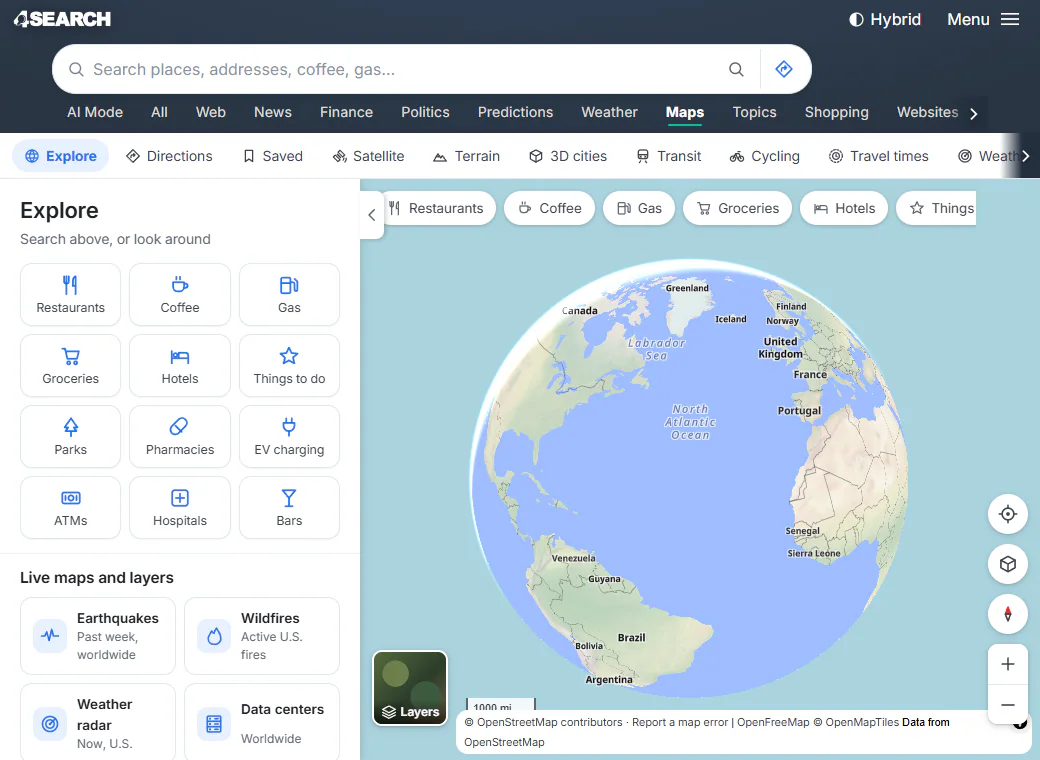
The Maps home. The side panel on the left changes as you search and select things; the map fills the rest of the window.
- 1The Maps search box, with the directions button on its right
- 2The ribbon of map types
- 3Category buttons: one tap searches the map
- 4Map controls: your location, tilt, north, zoom
- 5The Layers button
- The search box at the top looks for places, addresses and kinds of places. The diamond-shaped button at its right end opens Directions.
- The ribbon under the service tabs lists Explore (the Maps home), Directions, Saved, the types of map (Satellite, Terrain, Weather radar and the rest), Data centers and World. It scrolls sideways; use the arrows at its ends.
- The side panel shows whatever you are looking at: search results, a place, a route. The small arrow on its edge hides it to give the map the whole width, and shows it again.
- The map controls at the bottom right show your location, tilt the map, turn it back to north and zoom in and out.
- The Layers button at the bottom left changes the map type and turns layers on and off.
On a phone the panel becomes a sheet at the bottom of the screen that you drag up and down. See Map controls and gestures.
#What you can do
| To do this | Read |
|---|---|
| Find an address, a business or a kind of place | Find places and addresses |
| See hours, contacts and facts about a place | Place pages |
| Get from one place to another | Get directions |
| Use satellite, terrain, 3D, transit or cycling views | Types of map |
| See weather radar, earthquakes, wildfires and air quality | Live maps |
| Turn extra information on and off | The Layers menu |
| Zoom, tilt, turn, measure and use your location | Map controls and gestures |
| See how far you can get in 10, 20 or 30 minutes | Travel times |
| Browse countries, states and cities | Countries, states and the world |
| Explore data centers and AI supercomputers | The data center map |
| Keep a list of your places | Save places |
You can also ask for a map from the ordinary search box: a search such as boston map or directions from boston to worcester shows a Maps card above the results. See Find places and addresses.
#Where the information comes from
Maps is built from free and public sources, and each one is credited on the page that uses it.
- The map itself, its streets, buildings, businesses and opening hours, comes from OpenStreetMap, a world map drawn by volunteers. That is why you will see a Report a map error link: anyone can correct it there.
- Cities, towns, U.S. ZIP codes and country facts come from GeoNames, an open list of places.
- Short descriptions and photos of places come from Wikipedia.
- Satellite and aerial pictures come from NASA, the European Space Agency and national mapping agencies, such as the U.S. Geological Survey for the United States.
- Live maps come from U.S. government agencies: weather radar from NOAA, earthquakes from the U.S. Geological Survey, wildfires from the National Interagency Fire Center and air quality from AirNow.
- Directions are worked out by 4Search on OpenStreetMap's roads and paths. They assume normal traffic.
The full list, with each source's licence, is on About these maps, linked at the foot of every panel. See Map data and credits.
#Common questions
Is Maps free?
Yes. Searching, directions and every map type are free to use, with nothing to sign up for.
Does Maps have live traffic?
No. Travel times assume normal traffic and no delays. Check road signs and conditions as you go.
Can I use Maps without allowing anything?
Yes. Everything works. Only saving places, remembering recent searches and remembering your choice of miles or kilometers need Saved preferences.
Why do I see a message instead of the map?
The map needs a browser that can draw 3D graphics (WebGL), and JavaScript turned on. When either is missing, the map area says so, and the side panel still works: you can search, read place pages and get directions as text. If the message says the map could not load, check your connection and reload the page.